Media Library
The media library stores images, videos, audio files, documents, and other assets used across your site.
Upload Files
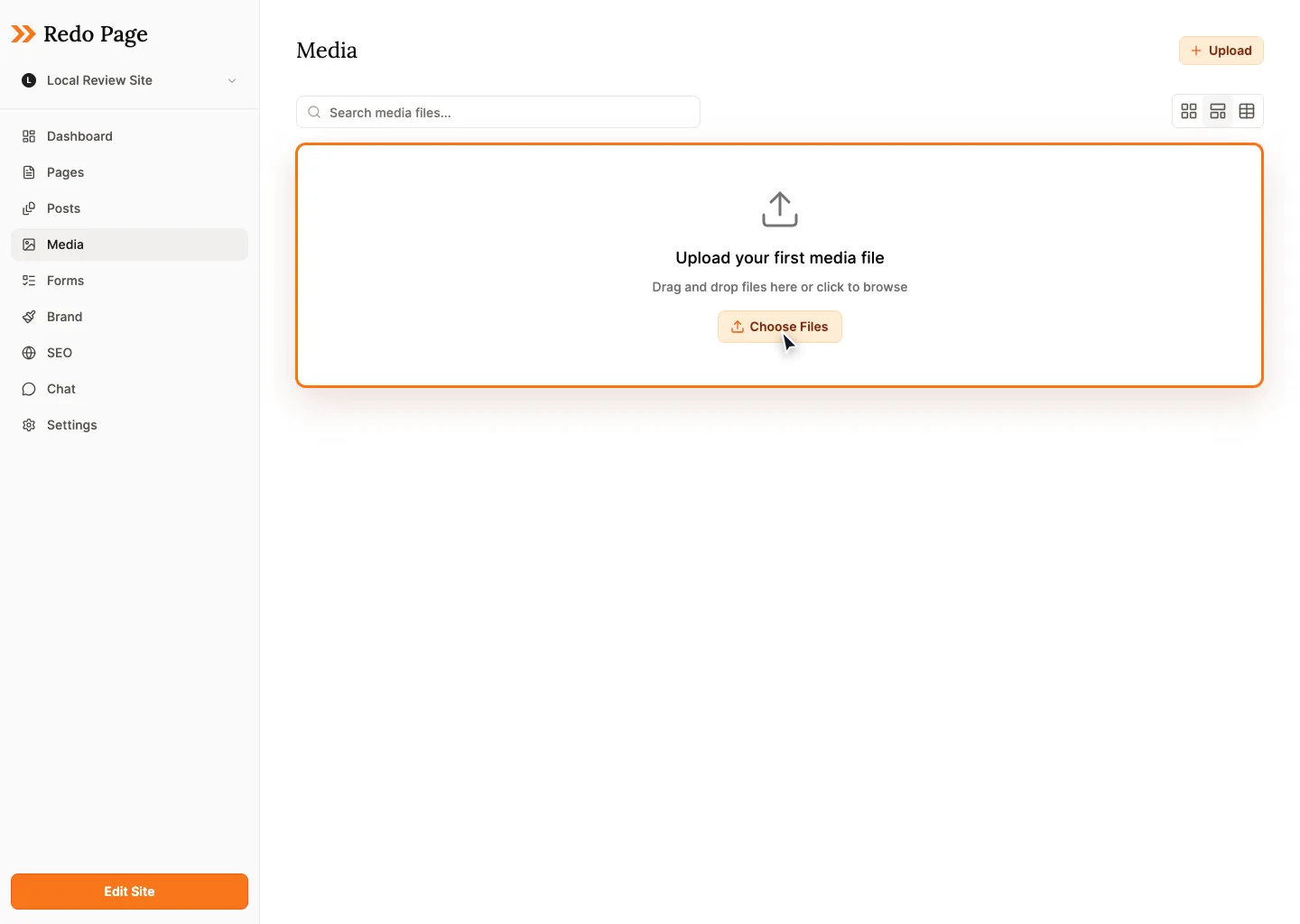
Open Media from the site sidebar, then drag files into the page or use the upload button. Image uploads are compressed automatically when possible, with a short undo window if Redo Page reduced the file size and you want to keep the original.
Find And View Assets
- Use search to find files by name, title, or alt text.
- Switch between masonry, grid, and table views depending on whether you are browsing visually or managing metadata.
- Open images in the lightbox for a larger preview.
Edit Metadata
Use the edit controls to rename assets and update alt text. Alt text helps screen reader users and gives search engines useful context.
Alt text tip
Describe the image's useful content, not the file itself. "Owner standing in front of the bakery counter" is better than "hero.jpg".
Using Media Elsewhere
When a page, form, brand setting, or block asks for an image, choose from the media picker or upload a new file there. Uploaded files become available in the central media library.
Deleting Files
Delete unused files from the media library when you no longer need them. Before deleting, make sure the file is not still used on a page or in a brand asset.